Change RAID Type - APP
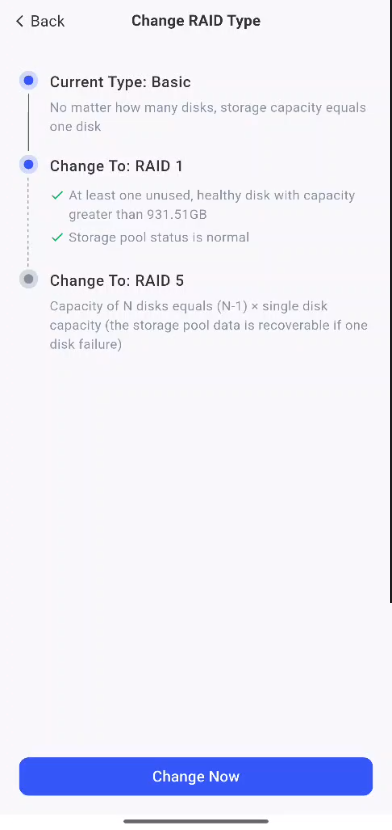
IronNut supports changing the storage mode of the storage pool without losing existing data, helping you flexibly adjust the storage configuration according to your needs. For example, if you add a sufficient number of available hard drives, you can change the storage mode of your IronNut NAS from RAID 1 to RAID 5. Currently, the IronNut system supports upgrading from Basic mode to RAID 5, with the upgrade path being Basic > RAID 1 > RAID 5.Please note that different RAID modes have varying requirements for the number of hard drives. This article will guide you on how to change the RAID type of the storage pool in the Tieniu NAS.
**Important Note: **Before proceeding with storage pool expansion, it is recommended to back up all critical data and consult professionals for detailed guidance. During the entire expansion process, ensure the device is continuously powered to avoid data loss and system crash caused by unexpected power outage. For data backup, refer to How to Implement Drive Replacement for Expansion
Hard Disk Requirements
When changing the RAID type of a storage pool, the Tieniu NAS must have a sufficient number of available hard drives installed. The table below lists the minimum number of hard drives required for the target RAID type:
RAID Type Requirements and Restrictions
RAID type conversion is irreversible, so please proceed with caution. For example, RAID 1 can be changed to RAID 5, but RAID 5 cannot be changed to RAID 1.
Please refer to What is RAID? for more information.
Steps to change the RAID type
Preparations before starting:
-
Confirm that the storage pool status is normal.
-
Prepare the new hard drive: its capacity must be greater than or equal to the capacity of the smallest hard drive in this storage pool, and it is recommended that all hard drives be of the same type and model.
To change the RAID type of a storage pool:
-
Prepare hard disks: Ensure that a sufficient number of available hard disks are installed on the device (the capacity of a new hard disk shall not be less than that of the existing hard disk).
-
To access the "Storage Management" page: click **System Settings > Storage Management**.
-
Navigate to the storage pool details page: Locate and click the storage pool for which you want to change the RAID type.
-
Select "Change RAID Type". If this option is not available, it means the current RAID mode does not support modification.
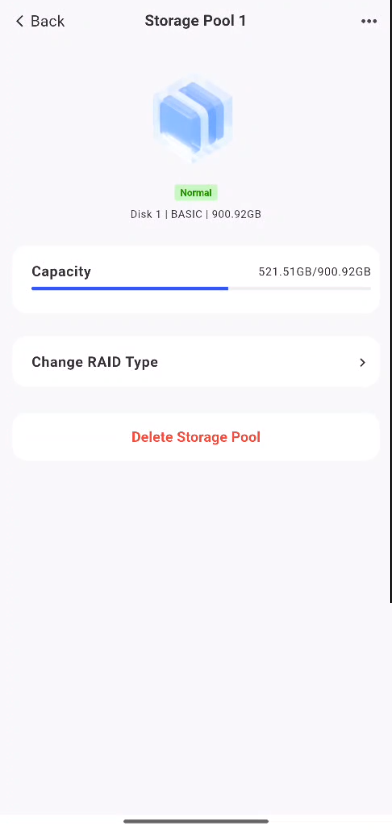
- In the pop-up options, confirm the RAID type you want to change to and click " **Change Now **". Note: The " **Change Now **" button is clickable (not grayed out) only when the current RAID type supports modification and the hard disks meet the requirements.
-
Select the available hard drives to add to the storage pool. Note: All data on the newly added hard drives will be erased, so please be sure to back up your data in advance. Refer to the How to back up hard drive data? for more information.
-
After confirming that the settings are correct, click " **Confirm **", and the system will start the conversion. During the conversion process, the status of the storage pool will be changed to the **synchronizing **status. After the synchronization is completed, the storage pool will automatically return to the normal state.
⚠️ Important Notice
-
Capacity Delay: If the storage pool capacity changes after RAID conversion, the new capacity will not be displayed normally until the data synchronization is completed. Please wait patiently.
-
Single-disk expansion: Currently, only adding one hard drive at a time for expansion is supported, and adding multiple hard drives simultaneously is not supported. If you need to expand with multiple hard drives, please add them one by one in batches and complete the conversion for each.
-
Changing the RAID type of a storage pool takes a long time to synchronize and consumes system resources, which may lead to degraded device performance. For details, please refer to the Why Is RAID Synchronization So Slow document. It is recommended to perform this operation during the idle period of the device. During the repair process, please ensure that your TIEniU NAS device is continuously powered on and avoid restarting it to prevent operation exceptions and data loss.
-
In the pop-up window for selecting a new hard drive, the list will only display the RAID types that can be switched to. For example, if the current storage pool is in RAID 1 mode, only the RAID 5 option will appear in the list.
-
If a problem occurs with a specific hard drive during the conversion process, the RAID type will still attempt to change, but the storage pool status may become "degraded".